Chapter 7: Optical Analysis & Automated GPU Optimization
In Chapter 6, you saw how to inspect a stone visually at a single camera angle. In the real world, however, a gemstone is never static: as the wearer moves their hand, the stone rocks continuously through a -45° to +45° viewing arc. A cut that looks bright at 0° can suddenly open a massive window at 15° tilt!
ProFacet’s Optical Analyzer and GPU Performance Optimizer use WebGPU compute and instanced rendering shaders to evaluate your design across all 19 tilt angles simultaneously—and automatically search hundreds of angle combinations to find the highest-performing cut.
Part A: The WebGPU Optical Performance Analyzer
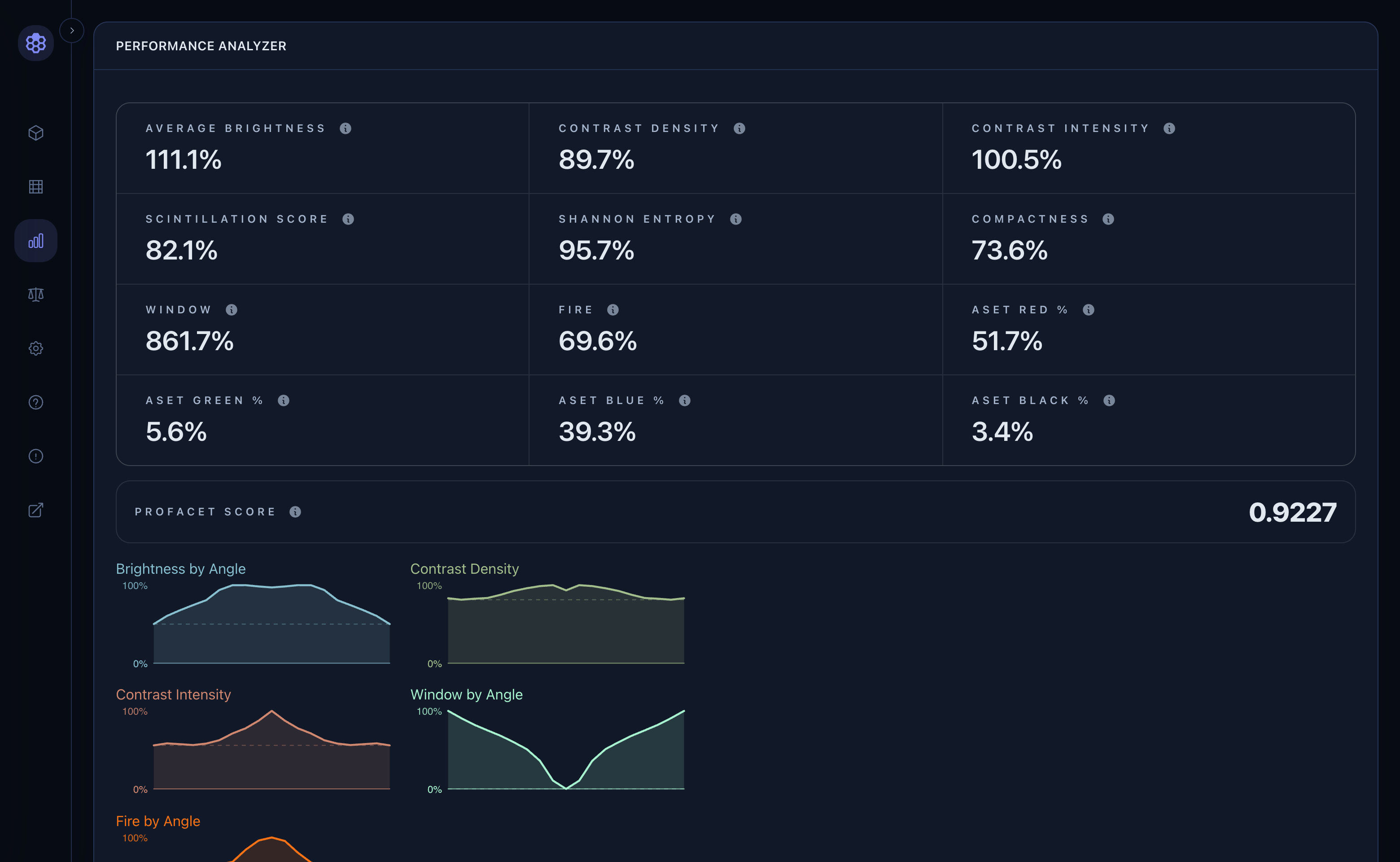
Click Analyzer in the left navigation rail (WORKSPACE) to run a full 19-angle optical sweep (-45° to +45° in 5° steps):
[!TIP] Process Your Design First (
Cmd/Ctrl + Enter) If you edited your script in the Spec Editor, pressCmd/Ctrl + Enter(or clickProcess 🚀) before switching toAnalyzerso the GPU analyzes your latest geometry.
1. How to Read the 12 Optical Metrics
All percentage metrics are calibrated against a Standard Round Brilliant (SRB) Quartz (RI = 1.54) reference stone (100% = SRB Quartz baseline):
| Metric | What It Measures | Ideal Target |
|---|---|---|
| Average Brightness | Tilt-weighted mean light return across -45°..+45° (emphasizing 0°..20° face-up angles). | > 100% (higher = brighter overall return). |
| Contrast Density | Spatial frequency of bright-to-dark virtual facet boundaries across the crown. | 80% – 110%+ (finely divided virtual facets rather than large flat mirrors). |
| Contrast Intensity | Local luminance contrast between neighboring bright and dark virtual facets. | 85% – 105%+ (crisp, bold visual "pop"). |
| Scintillation Score | Dynamic virtual-facet flash rate as the stone tilts from -45° to +45°. | Higher is better (lively, dancing sparkle under motion). |
| Shannon Entropy | Information-theoretic uniformity of virtual facet brightness distribution. | 85% – 100%+ (prevents dead or washed-out sectors). |
| Compactness | How evenly light return extends out to the girdle perimeter and corners. | 95% – 120% (keeps elongated tips and corners bright). |
| Window | Tilt-weighted light leakage straight through the pavilion. | Lower is better (minimize see-through pavilion leakage). |
| Fire | Angular dispersion (spectral separation of red to violet rays exiting the crown). | Higher is better (stronger rainbow flashes). |
| ASET Red / Green / Blue / Black % | Face-up (0°) angular spectrum breakdown. | Aim for high Red (35%–55%) balanced with Blue (20%–45%) contrast, moderate Green (10%–25%), and near-zero Black (< 3%). |
2. The Composite ProFacet Score (0.0000 – 1.0000)
Right below the 12 metric cards sits the overall ProFacet Score, which combines brilliance, contrast, scintillation, fire, ASET balance, and window avoidance into a single objective rating:
Material & Refractive Index (RI) | Good Score | Excellent / Showcase Score |
|---|---|---|
Quartz / Amethyst (RI 1.54) | ≥ 0.76 | 0.80 – 0.86+ |
Beryl / Tourmaline (RI 1.58 – 1.62) | ≥ 0.78 | 0.82 – 0.88+ |
Spinel / Sapphire / Ruby (RI 1.72 – 1.76) | ≥ 0.80 | 0.85 – 0.92+ |
Cubic Zirconia (RI 2.15) | ≥ 0.86 | 0.90 – 0.94+ |
Diamond (RI 2.42) & Moissanite (RI 2.67) | ≥ 0.88 – 0.90 | 0.92 – 0.96+ |
3. The 8 Angle-Response Sparklines & 20-Tile Inspection Grid
- 8 Tilt Sparklines: Plot Brightness, Contrast Density, Contrast Intensity, Window, Fire, Scintillation, Entropy, and Compactness continuously across
-45°to+45°. Look for a wide, flat Brightness by Angle curve and a Window by Angle curve that stays flat near0%across the central±20°viewing zone. - 20-Tile Visual Grid: Shows the face-up ASET map alongside 19 raytraced tilt renders (
-45°to+45°). Click any tile to inspect it full-screen and step through tilt angles with your keyboard arrow keys!
Part B: The Multi-Variable GPU Performance Optimizer
Why guess whether your Pavilion Mains should be 41.2° or 41.8°, or whether your Crown Mains should be 34.0° or 35.2°? Click Optimizer in the left navigation rail (WORKSPACE) to let your GPU optimize all of your angles simultaneously:
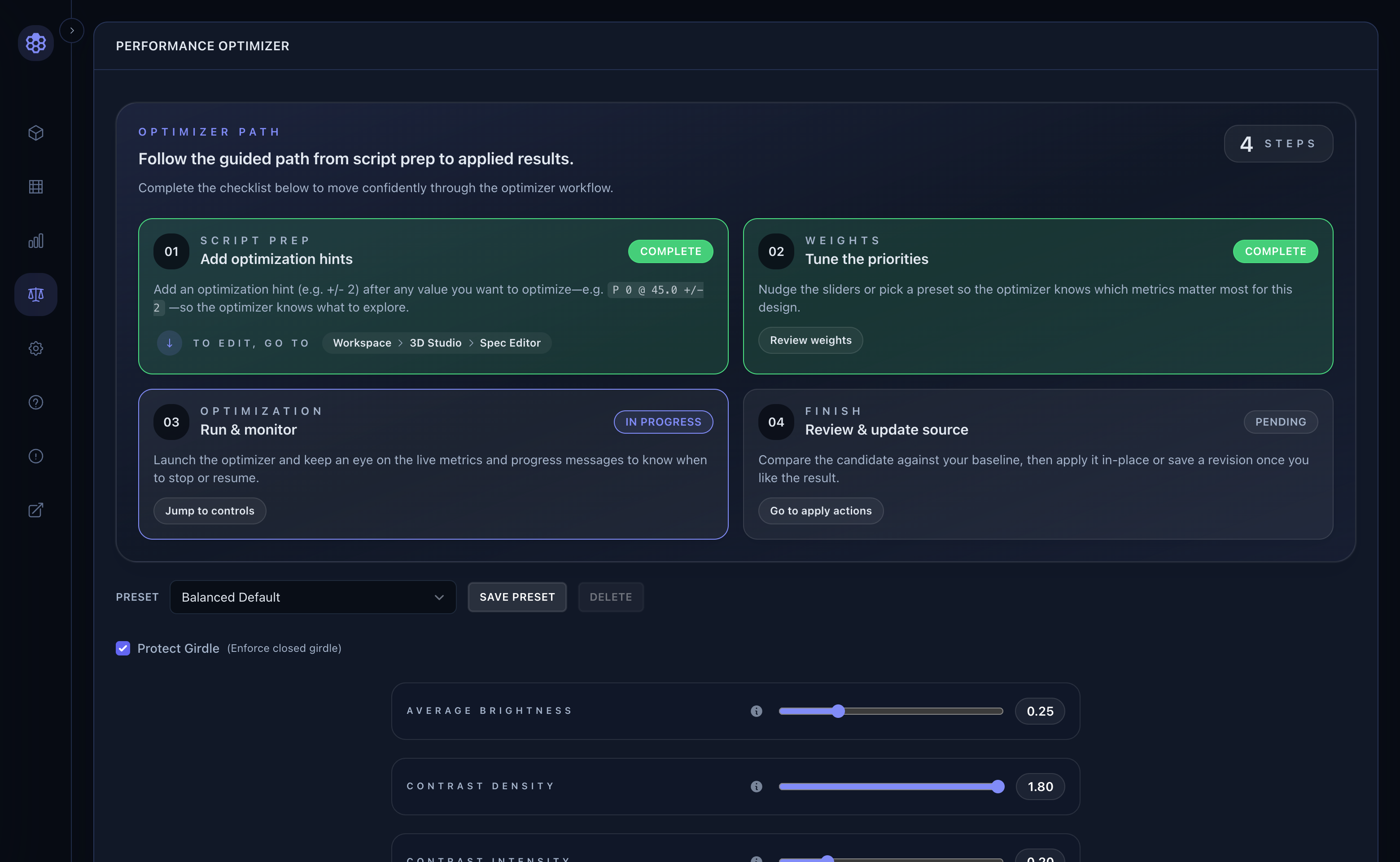
Step 1: Mark Angles or CAM Parameters as Optimizable (±)
- In the Slicer: Click the
±button on any tier row in the Tiers table, on the verticalANGLE/DEPTHmasts, or next to any slider in the CAM Preform Studio to toggle an optimization range (±1.5°,±2.0°, etc.) on that parameter. - (In Part II, you will also see how to write optimization ranges directly in FSL with
+/-and in Lua withval().)
Step 2: Select a Weight Preset & Girdle Protection
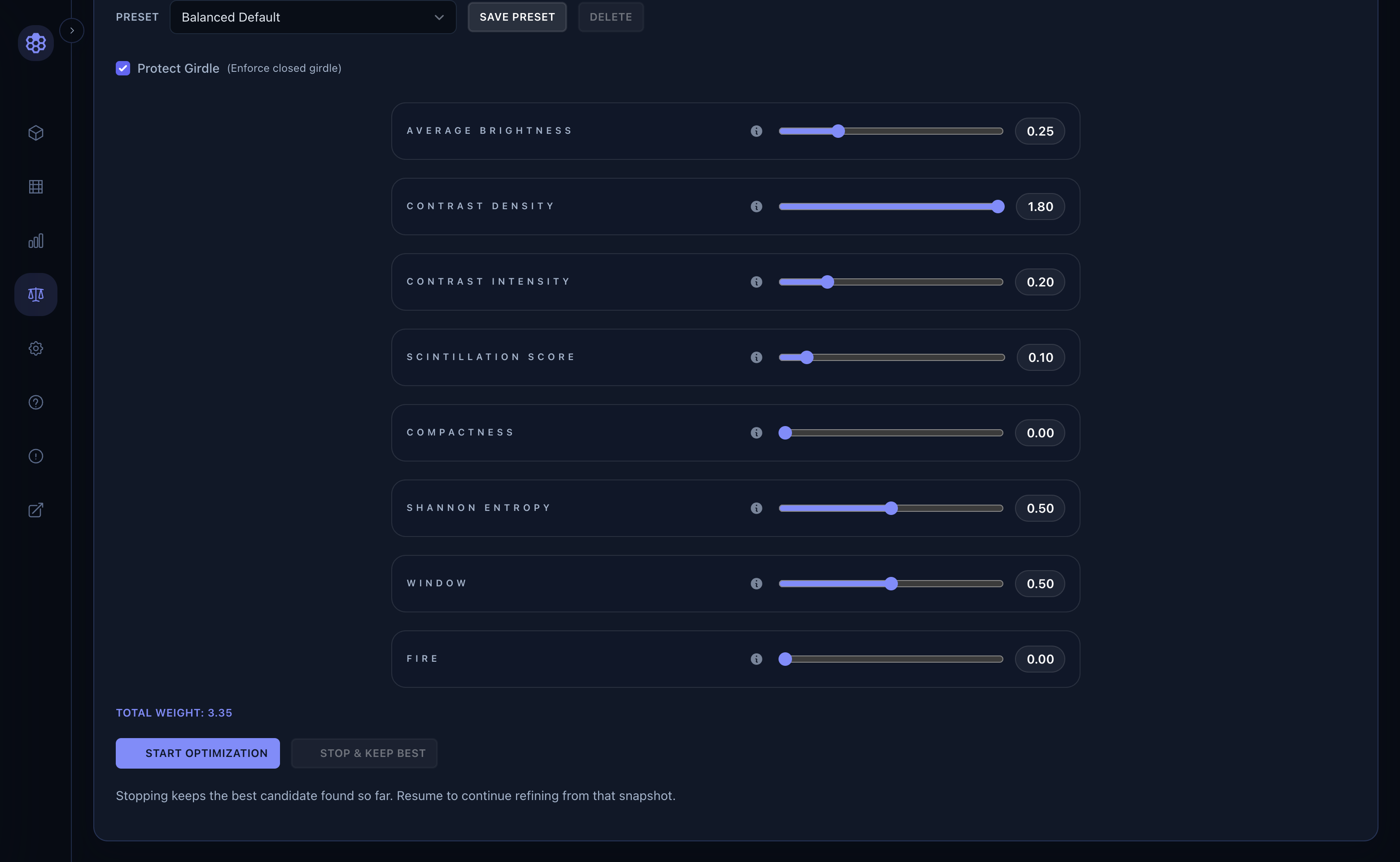
- Preset Selector: Pick
Balanced Default,Maximum Brilliance,High Fire & Dispersion,Zero Window (Low RI), or tune the individual metric sliders and clickSAVE PRESET. Protect Girdle (Enforce closed girdle): Check this box to forbid the optimizer from picking angle combinations where Crown and Pavilion facets cross each other and pinch the girdle open.- Custom Geometric Constraints (
assert): In Part II (Chapter 13 & Chapter 15), you will also see how addingassert(stone().tablePercentage > 50, "Table too small")in your script acts as a hard constraint that steers the GPU Optimizer away from undesirable proportions!
Step 3: Run, Compare & Apply In-Place
- Click
Start Optimization. ProFacet’s hybrid Nelder-Mead Simplex + Powell Direction-Set solver evaluates candidate geometries on the GPU and streams live improvements to the dashboard. - Switch to the 3D Studio and click the
Original | Optimizedcomparison toggle at the top of the viewport to A/B test the before-and-after stone inRaytraced,ASET, orWindowmode. - Click
Update Source In-Placeto write the winning angles directly into your script!
Next, let’s turn your optimized gemstone into a workshop-ready printed cutting sheet and explore file import, export, and Cloud Sync in Chapter 8: Printable Cutting Sheets, Import/Export & Cloud Workflow.