Chapter 8: Printable Cutting Sheets, Import/Export & Cloud Workflow
Once your gemstone design is sliced and optically tuned, ProFacet gives you everything you need to take it to the physical faceting bench, exchange files with legacy CAD software, manage a personal or cloud-synced library, and share cuts via self-contained URLs.
1. Generating Printable Cutting Instructions (Diagram View)
Click Diagram in the left navigation rail (WORKSPACE) to open the Printable Instructions generator:
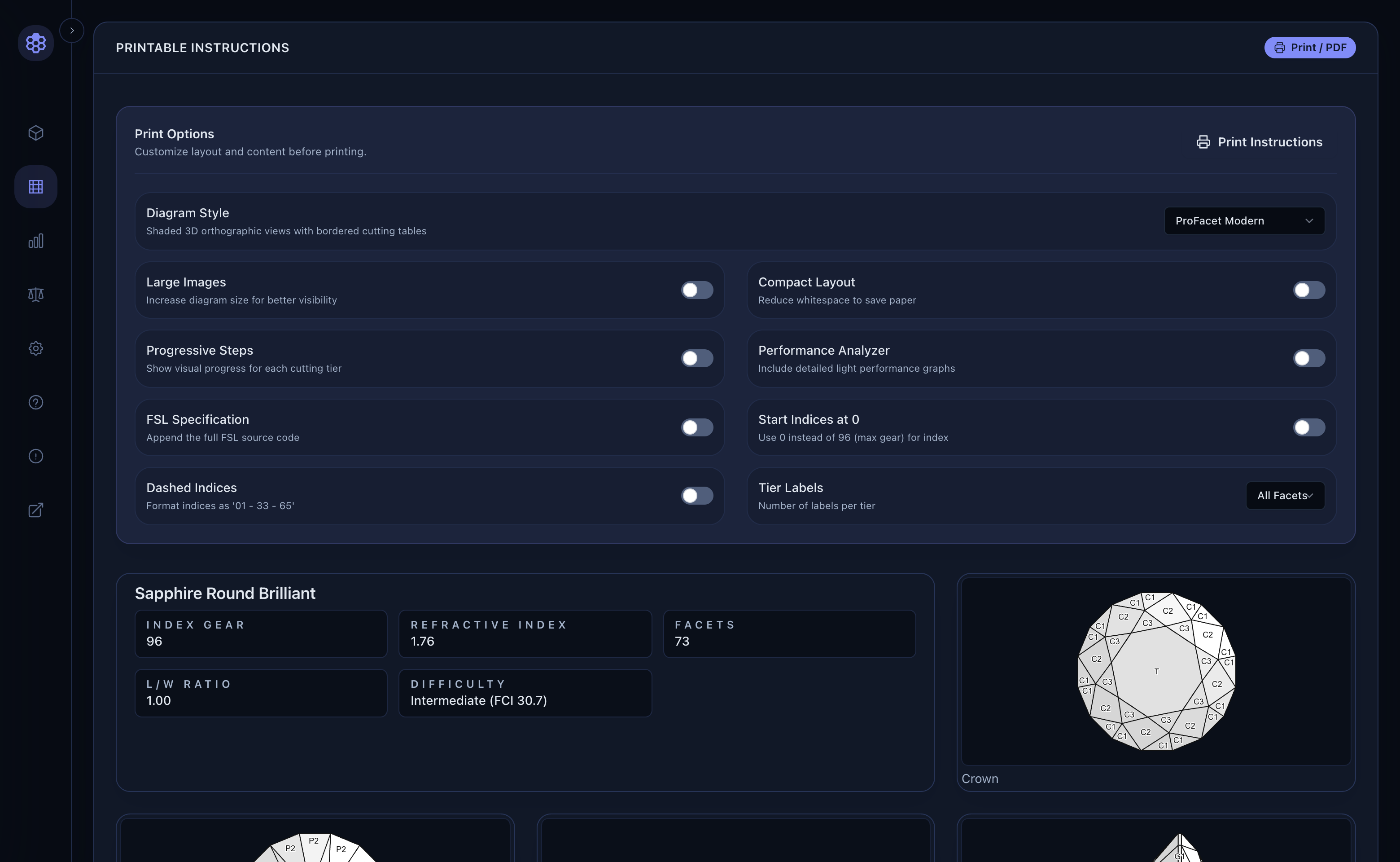
Customizing the Cutting Sheet (Print Options)
Before clicking 🖨 Print Instructions (which formats a clean, multi-panel cutting sheet for your printer or Save as PDF), configure the layout options to match how you like to cut at the bench:
Diagram Style: ChooseProFacet Modern(shaded orthographic Crown, Pavilion, and Profile diagrams with dark/light cards) or classic black-and-white line art for laser printers.Large Images&Compact Layout: Scale the orthographic diagrams larger for bench visibility, or tighten spacing to fit complex 15-tier stones onto a single page.Progressive Steps: Adds a step-by-step visual strip illustrating how the stone looks after each consecutive tier (P1 → P2 → C1 → C2…) is cut.Performance Analyzer&FSL Specification: Optionally append the optical tilt curves and raw.fslsource code to the bottom of your sheet.Start Indices at 0&Dashed Indices: Format index teeth starting from0or96(96 - 12 - 24 - 36).Tier Labels: Label All Facets, One Label per Tier, or No Labels on the orthographic drawings.
2. Importing & Exporting Industry File Formats (☰ Actions Menu)
Click the ☰ (Workspace Actions) button in the top-right toolbar of the 3D Studio to access file import, export, material switching, and random generation:
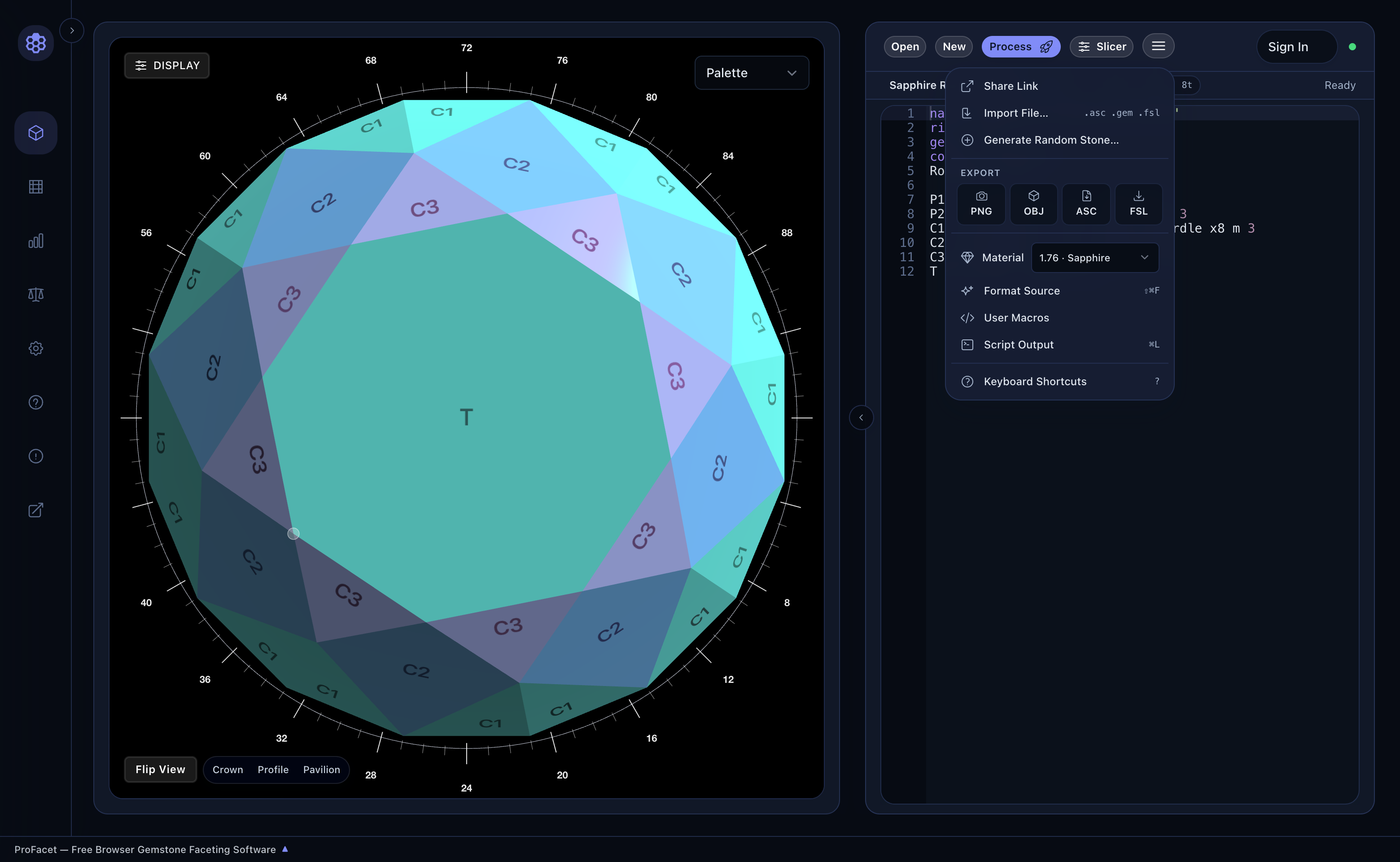
Importing .asc, .gem, .gcs, and .fsl Files
- Drag and Drop: Drag any GemCAD (
.asc), GemRay (.gem), Gem Cut Studio (.gcs), or ProFacet (.fsl) file from your computer and drop it directly onto the 3D Viewport! - Via Menu: Click
☰ → Import File...and select your file. ProFacet parses the legacy cut and translates its gear, refractive index, symmetry folds, and tiers into clean, editable FSL so you can raytrace or optimize it immediately.
Exporting PNG, OBJ, ASC, and FSL
Under the EXPORT bar in the ☰ menu:
PNG: Saves a high-resolution snapshot of the 3D viewport.OBJ: Exports the watertight 3D polyhedron mesh (.obj) for jewelry CAD (MatrixGold, Rhino, Blender) or external rendering.ASC: Exports a standard GemCAD.ascfile.FSL: Downloads your.fslspecification file.
3. Managing Your Design Library, 9 Starters & Cloud Sync (Open)
Click Open in the top-left of the right workspace pane to open the Open Design library modal:
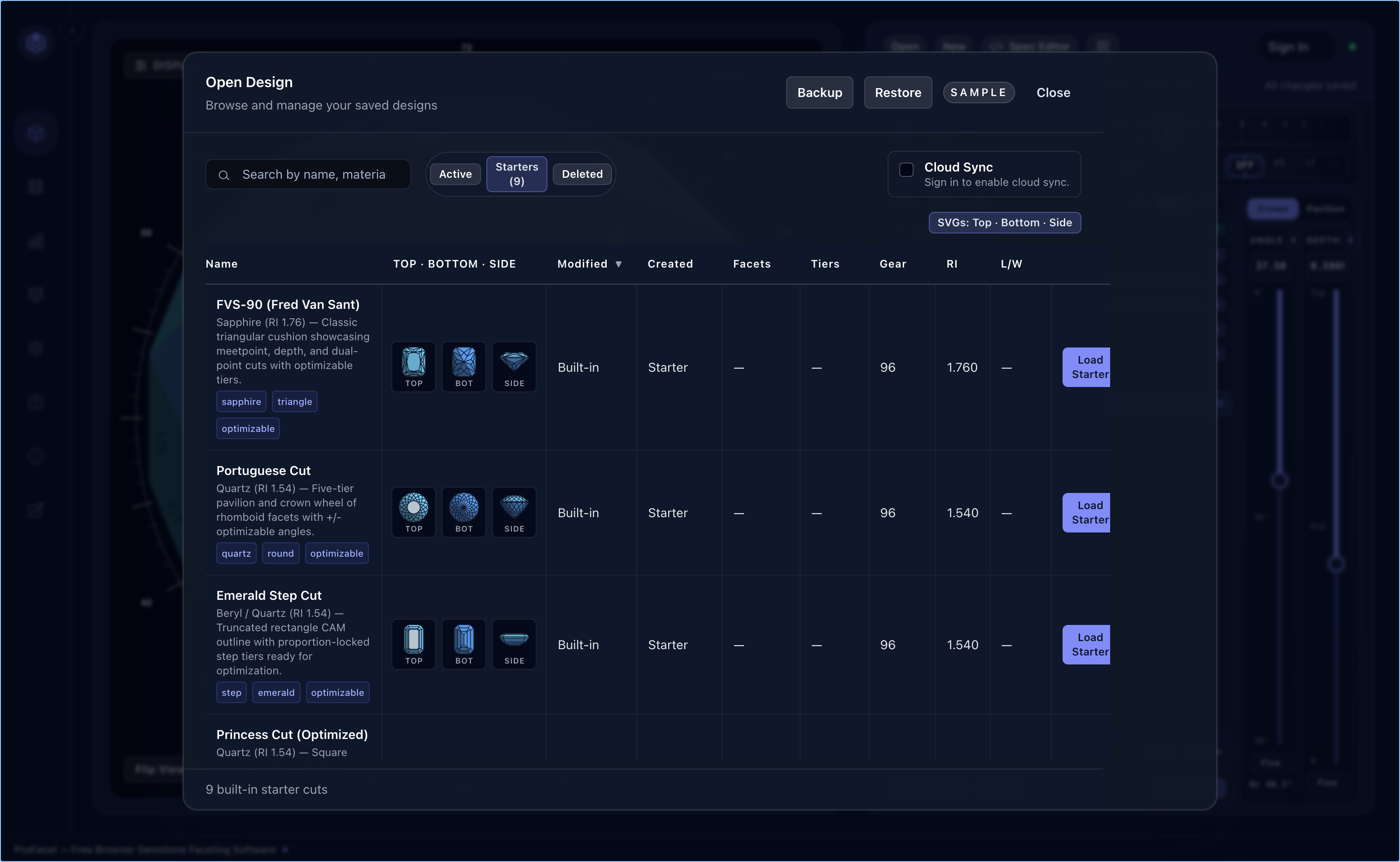
Active&DeletedTabs: Browse, search, filter by tag/material, or restore any of your saved designs, complete with live Top · Bottom · Side vector previews, facet/tier counts,Gear,RI, andL/Wratio.Starters (9)Tab: Load any of 9 curated reference designs (FVS-90 Sapphire Triangle, Portuguese Cut, Emerald Step Cut, Princess Cut, Standard Round Brilliant, and more) with a single click.- Local
Backup&Restore: Download your entire design library as a single.jsonbackup file anytime—even without an account. - Optional
Cloud Sync: ClickSign Into synchronize your designs and custom User Macros across all of your devices automatically, with full offline support.
4. Zero-Account Sharing via Self-Contained URLs (Share Link)
Want to send a design to a friend or post it online without attaching a file? Click ☰ → Share Link:
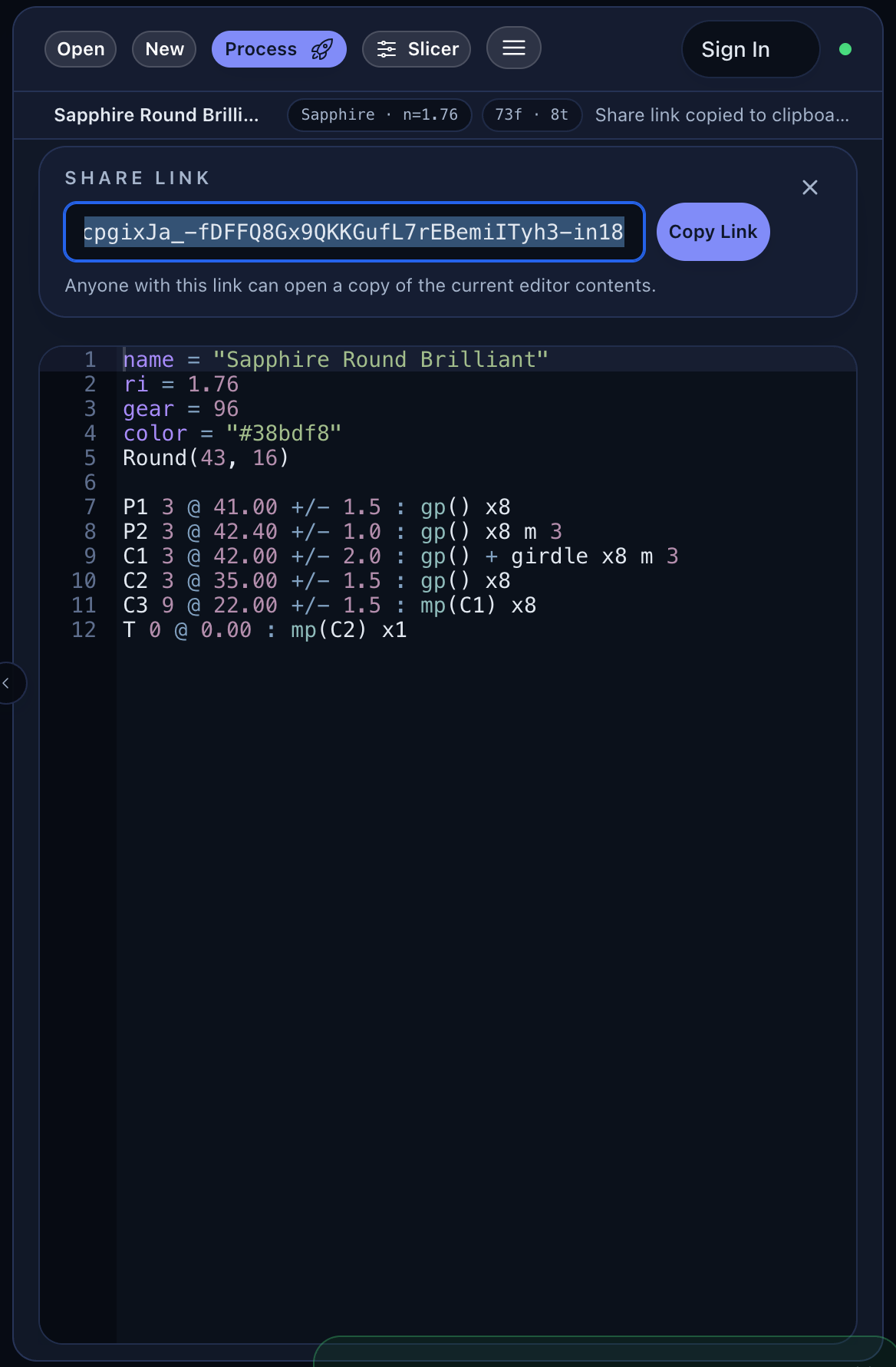
ProFacet compresses your entire FSL or Lua script directly into the URL query string (?fsl=...). Check Open in printable view if you want the link to open directly in the Printable Cutting Sheet view (?print=1&fsl=...), then click Copy Link. Because the design lives inside the URL itself, shared links never expire and require zero server storage!
End of Part I — Ready for Part II (FSL & Lua)?
Congratulations! You have completed Part I: The Visual Gem Cutter's Studio. You now know how to shape any preform, slice facets visually, decode classic diagrams, interpret ASET/Window/Scintillation maps, run GPU optimizations, and print shop-ready cutting instructions.
In Part II — FSL & Lua: Parametric & Algorithmic Gem Design, we go under the hood of the code that powers every stone in ProFacet. Turn the page to Chapter 9: The Dual Language Engine — FSL & Lua Side by Side!